
INSTALLATION
Download the latest installation file by visiting our web site Downloads page for ClientMate at http://www.itmates.co.za/downloads
CLIENTMATE
INSTALLATION INSTRUCTIONS
Download the latest installation file by visiting our web site Downloads page for ClientMate at http://www.itmates.co.za/html/downloads.html
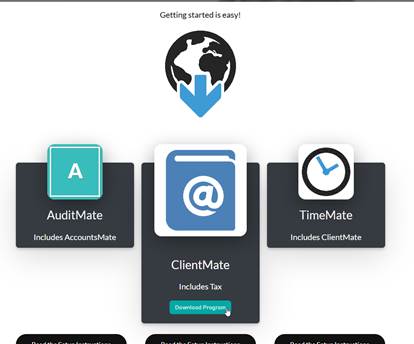
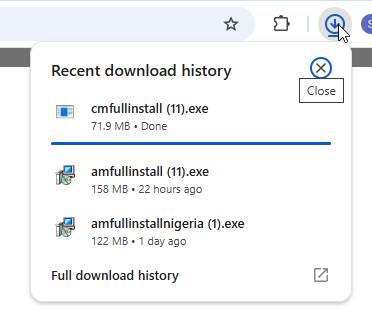
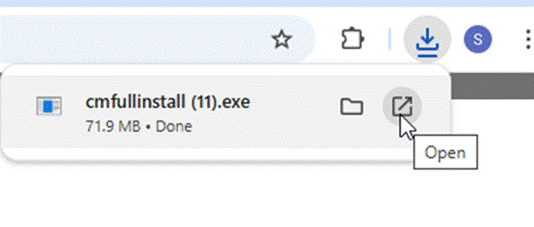
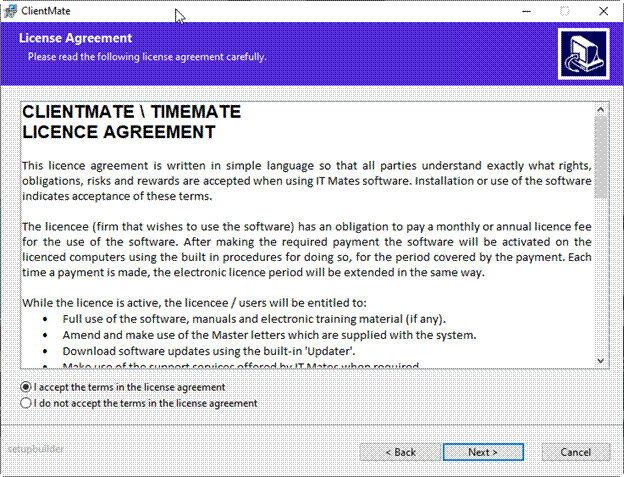
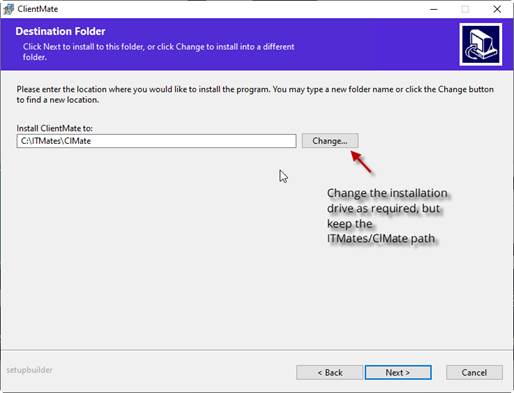
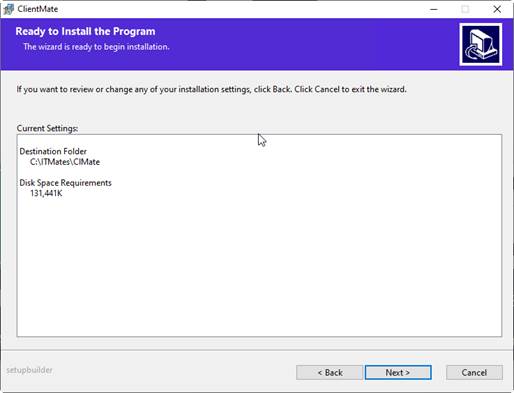
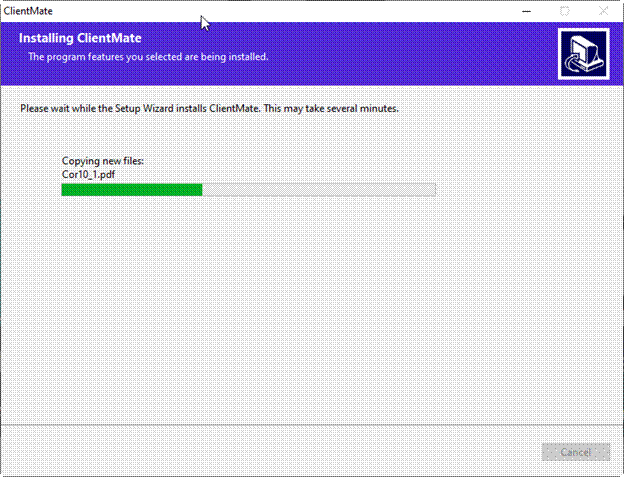
Once downloaded, run the installation file on the computer which will act as your ‘server.’
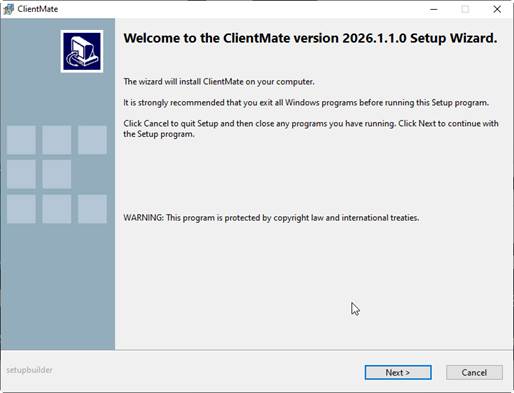
And accept the licence agreement:
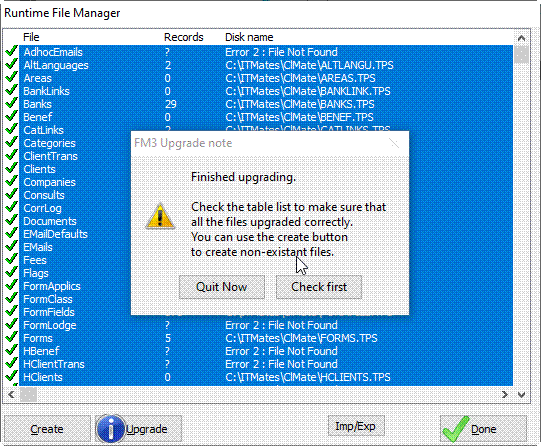
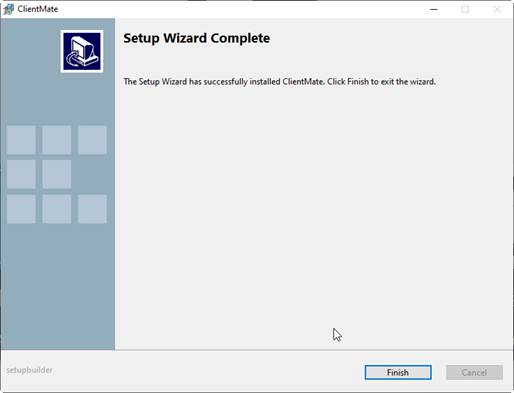
SETUP FILE SHARING
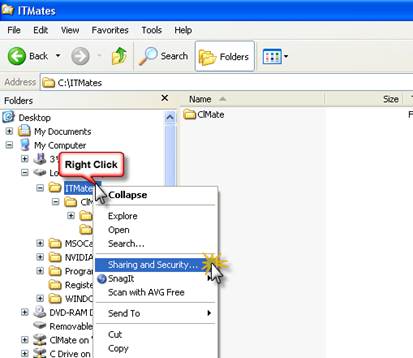
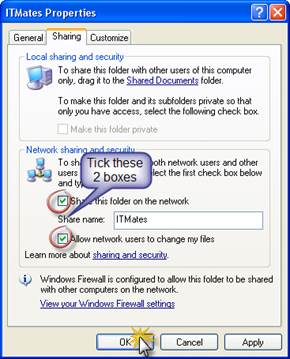
The next step is to setup file sharing. This is only required if the ‘root’ of the C:Drive isn’t already shared, as below.
REGISTRATION
Now would be a good time to Start ClientMate from the Desktop short-cut and attend to the Registration of the program, if it has already been paid for. To login you should initially use the Username: Demo and Password: demo to gain access to the program as follows:
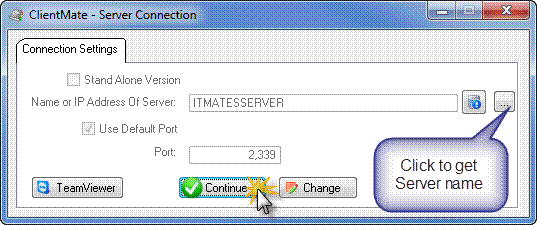
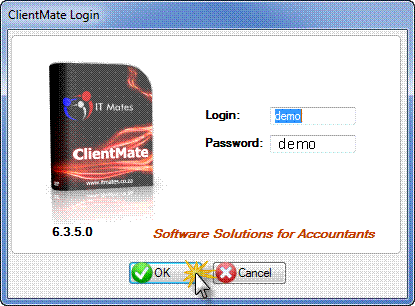
…then… choose Admin – Register…
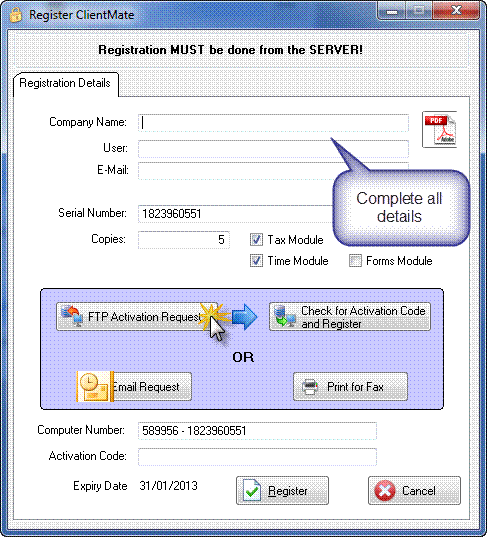
..and click on FTP Activation Request button to upload the activation request to ITMates online server.
..when completed the following message will appear. Read it!
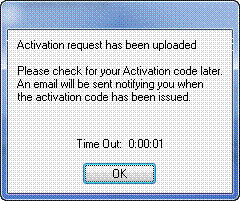
After a few minutes you can Check for the Activation code as follows:
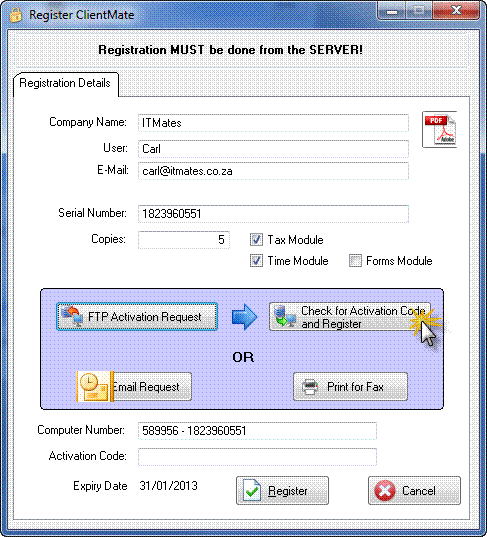
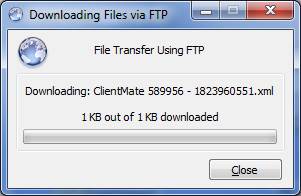
Once the activation code has been downloaded ClientMate will register itself and the following message will be displayed.
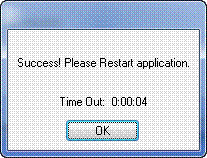
The program will close and you can start from the Desktop short-cut and login again.
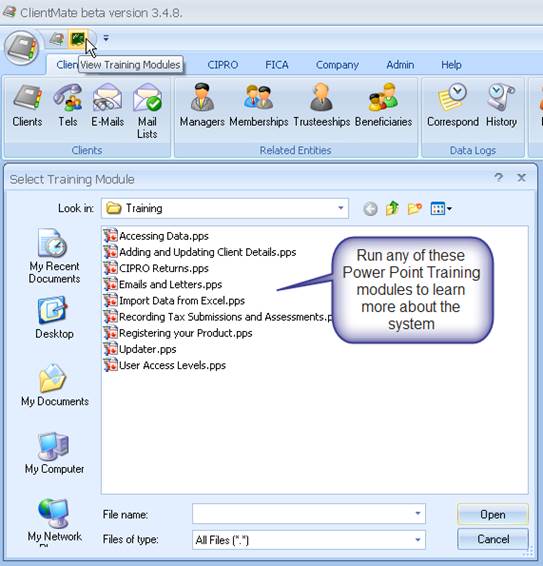
The Training modules found under the Training button will help you get started with the program.
SETTING UP WORKSTATIONS TO ACCESS CLIENTMATE
We now need to setup a ‘Mapped Network Drive’ on each workstation that will require ClientMate access. Open up Windows Explorer in the usual way on the workstation computer.
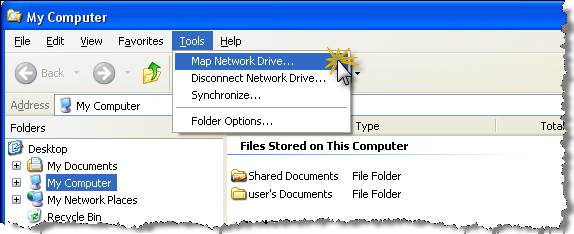
Select a Drive letter for the shared network drive e.g.:
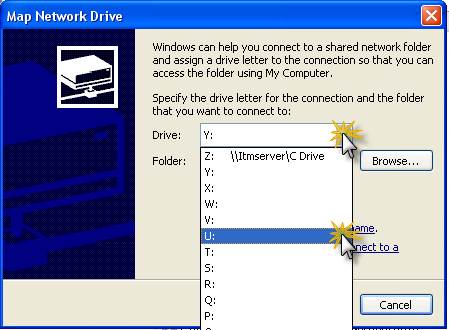
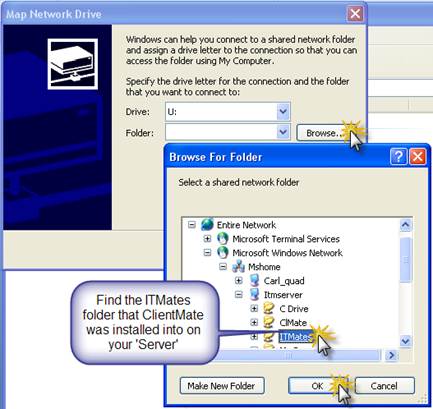
..and you should end up with something like this:
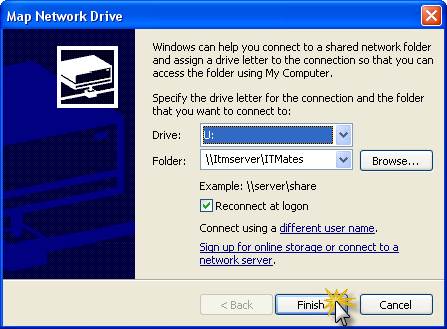
U: will now be the mapped network drive for your ClientMate installation.
Windows Explorer should now automatically open to Explore the Drive:
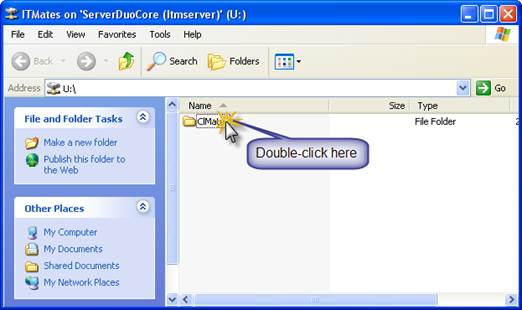
..then create the Desktop shortcut:
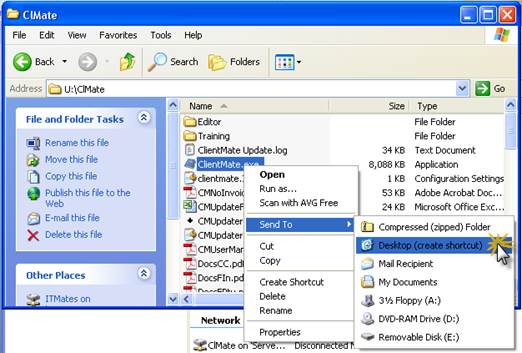
You will now be able to start ClientMate from the desktop shortcut on the workstation.
You will need to ‘Run as Administrator’ in order for special components of the program to register.
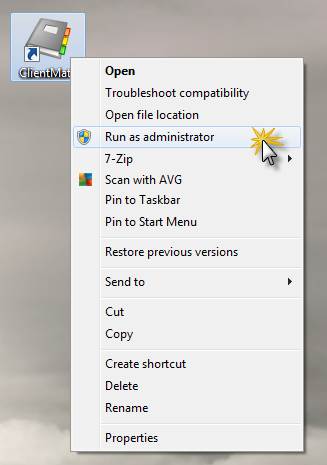
Repeat this on each workstation computer, using the same drive letter, if possible.